Nexus Drawing Guide: Drawing Automation & AI for SolidWorks
8 min read
Learn how AI automates SolidWorks drawings with Nexus. Create fully dimensioned engineering drawings, multi-views, sections, GD&T, and BOMs natively inside SolidWorks.
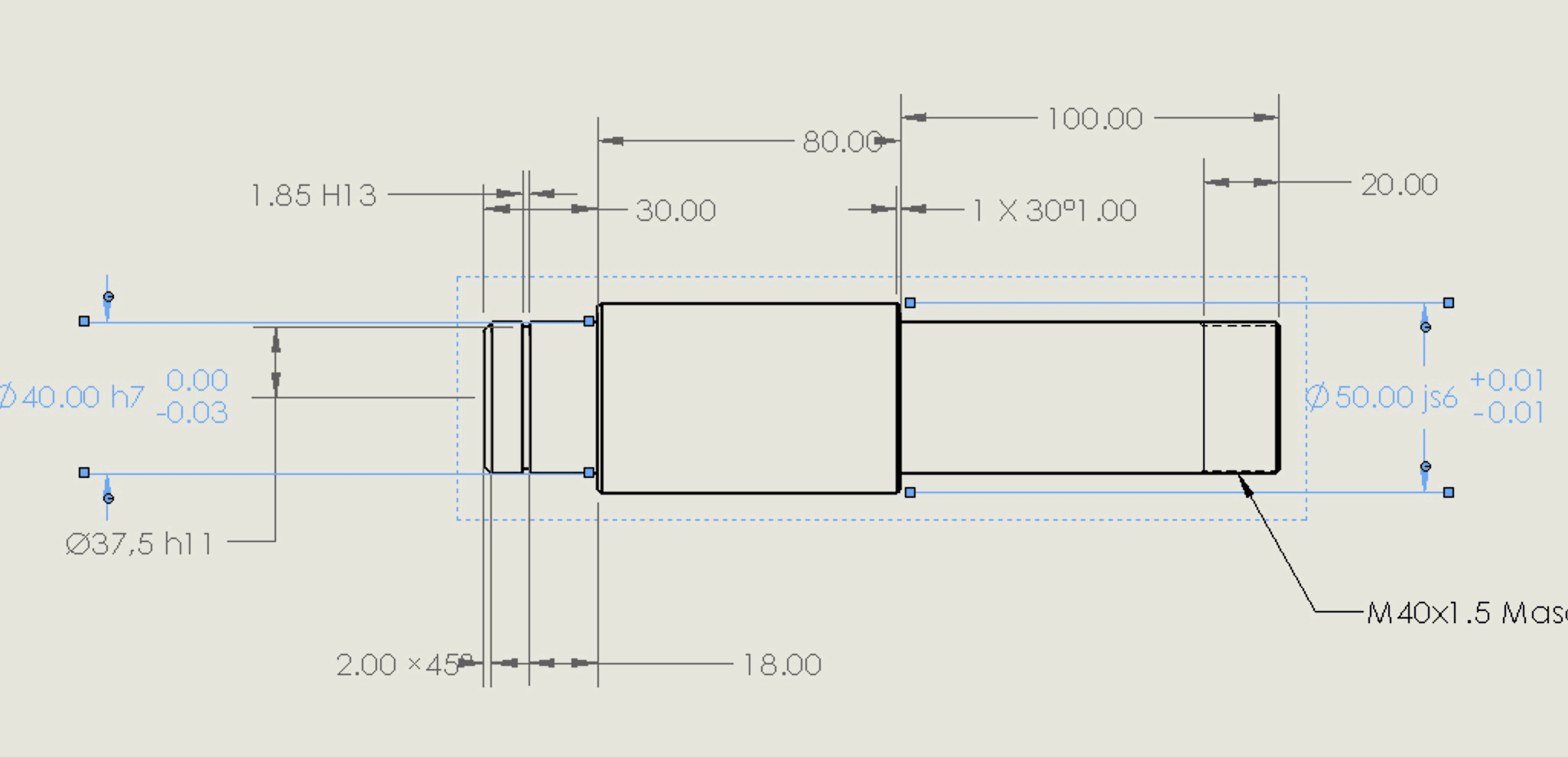
AI for SolidWorks: Drawing automation that works right inside SolidWorks.
Part and assembly drawings, multi-views, sections and details, BOM and balloons, GD&T are all possible with Nexus.
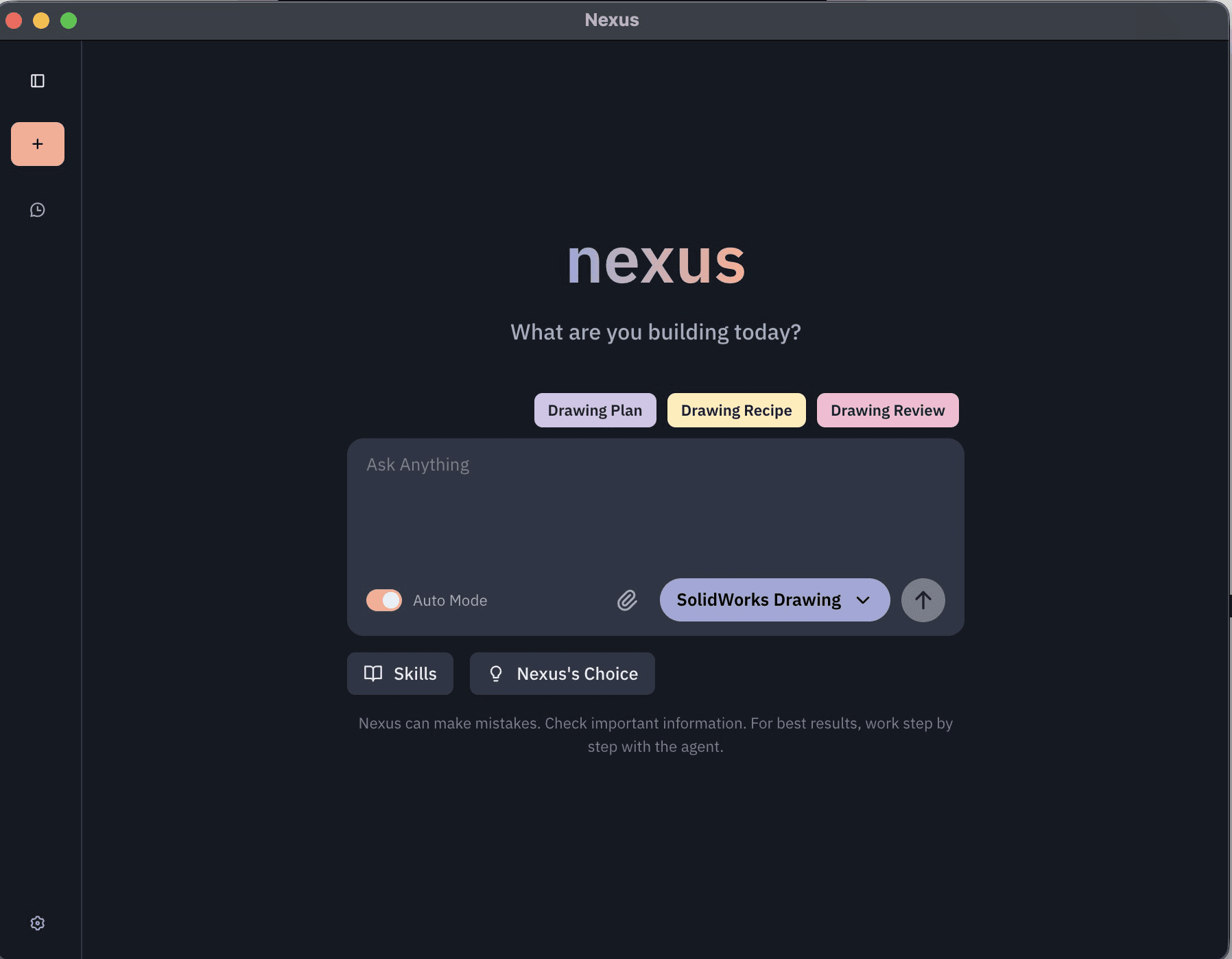
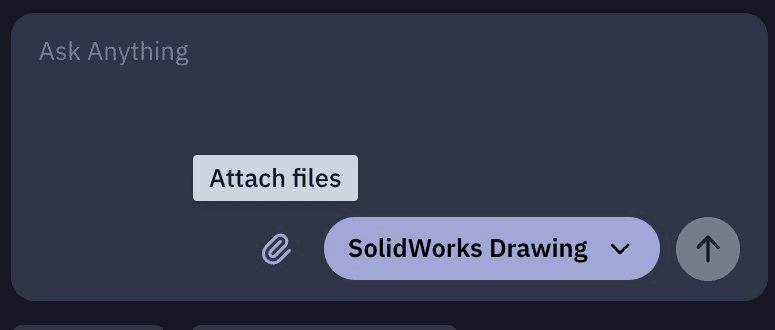
Always select the drawing agent. Then, describe the goal, attach context, and send.
Custom workflows.
Plan, make and review with built-in workflows. Edit the workflows to your standards, or build your own.
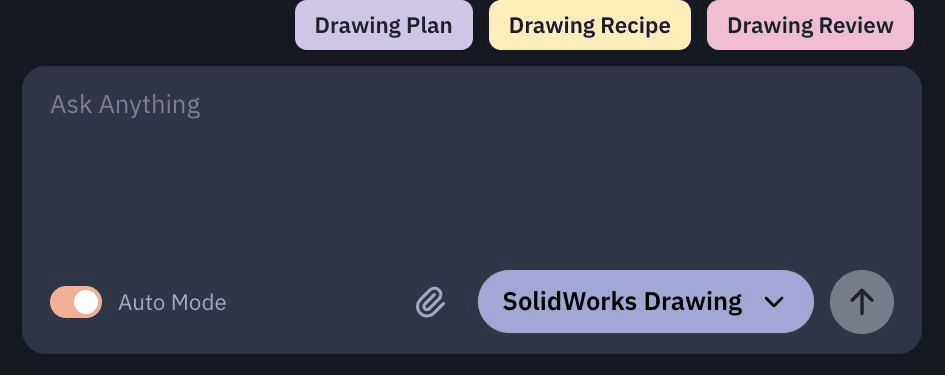
Type what you want and attach context with the clip, or launch a workflow from the buttons above.
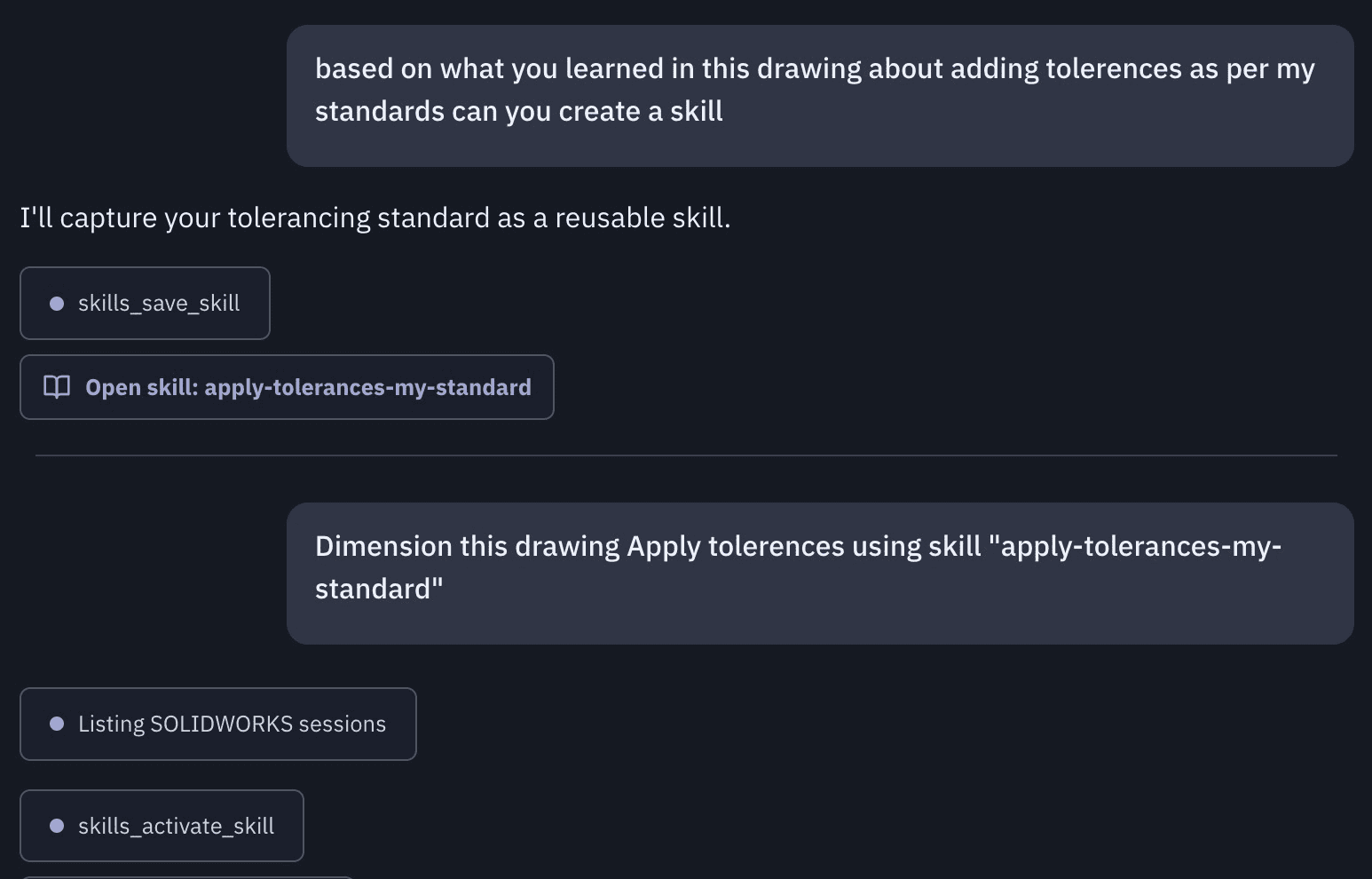
Nexus improves itself.
Teach it a task once and it saves the steps as a skill to reuse.
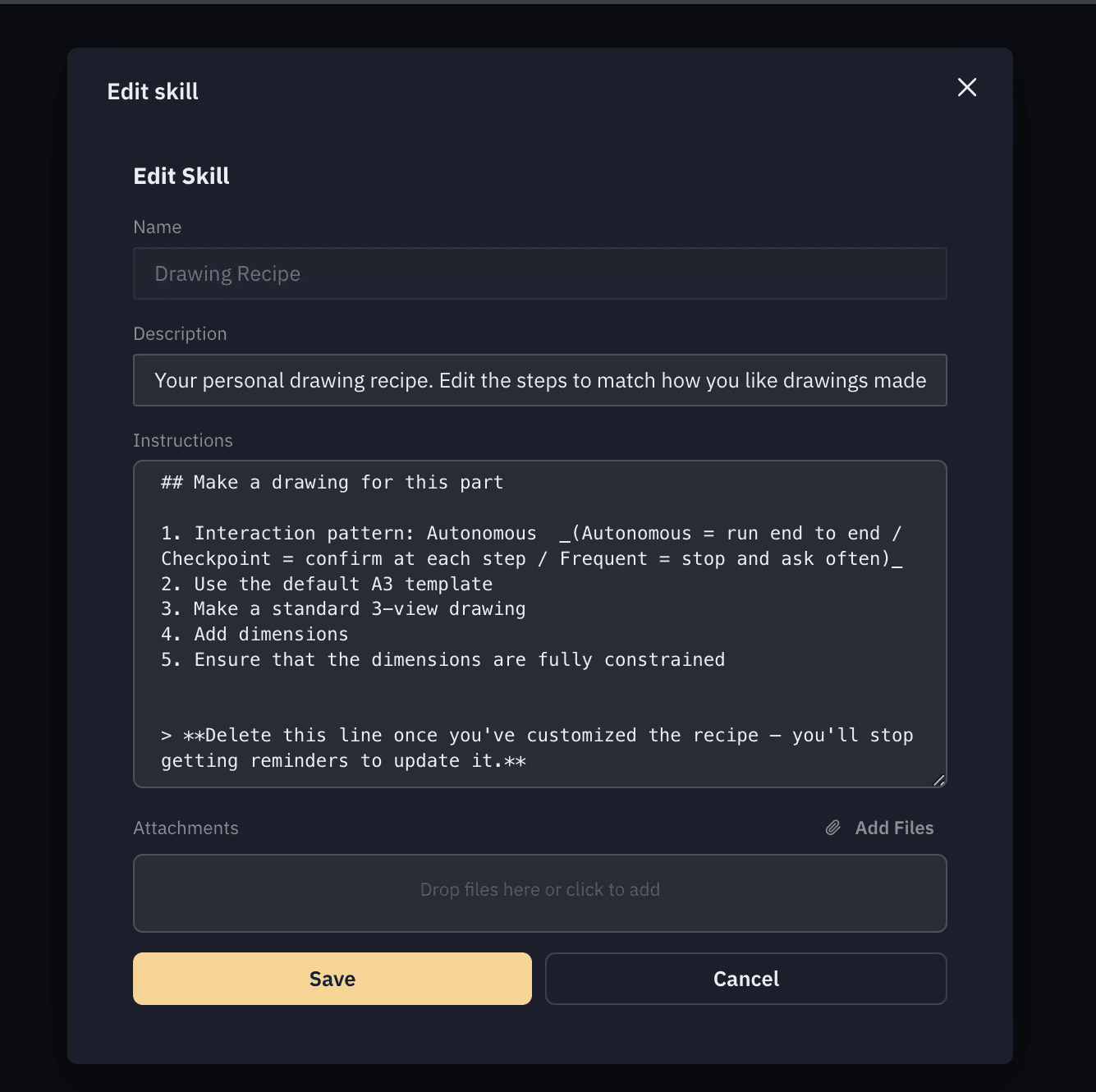
Open any workflow and edit the steps to match how your team works. Your template, your rules, your files.
Two ways to get the same drawing comes down to effort versus speed.
Spell out each step and Nexus runs fast and exactly as asked. Or hand it the goal and let it make the calls for you - the least effort on your side.
Step by step: Fast & precise
You make the calls. Each step runs straight through and lands exactly what you asked for.
"Front + right view on A3 + dimensions."
Hands-off: Least effort
Describe the goal and Nexus picks the views, scheme and layout for you.
"Make a fully dimensioned A3 drawing."
What steering looks like, one prompt at a time.
Each step is small and you can check it before the next.
"Front + Right view on A3, third-angle.""Add Section A-A through the front view.""Dimension it — ordinate from the bottom-left corner.""Add GD&T: position on the 4 bolt holes to datums A|B|C."
Prefer hands-off? The same drawing from one prompt:
"A3 third-angle, fully dimensioned, with a section through the bore."
Concrete prompts you can lift and adapt.
The more you name views, standard, scheme, and fields, the more precisely Nexus lands it.
"Front + Top + Right, third-angle, A3 landscape.""Add a 2:1 detail view on the keyway.""Section A-A through the bore, aligned vertical.""Hole callouts on the circular view, PCD reference circle.""Title block: material 6061-T6, finish anodized, drawn-by <name>.""Move the Ø12 callout off the section line.""Use the template at C:\Templates\ISO_A3.drwdot.""Turned part - dimension from the spindle face as datum A."
Good
"Make a drawing of this part."
Better
"A3 third-angle, Front + Right, fully dimensioned."
Best
"A3 third-angle. Front + Right, then Section A-A through the bore. Dimension ordinate from the bottom-left, hole callouts on the circular view. GD&T: position on the bolt holes to A|B|C. Title block material 6061-T6."
Three predefined drawing automation workflows.
Plan, make and AI design review. Treat them as starting points. Open them and edit them to your standards: your template, your planning rules, your review checklist.
"Drawing Plan" - Plans the drawing
Decides how to draw the part first. Manufacturing method, primary view, the view set, dimensioning scheme, sheet, scale, GD&T. You approve or adjust, then it executes. Edit this workflow to encode your planning standards.
"Drawing Recipe" - Makes a standard drawing
Produces a standard drawing end to end, the way your team always does it. Edit this workflow to point at your template and house conventions.
"Drawing Review" - Reviews the drawing
A manufacturing and standards review - checks the drawing feature by feature against ASME/ISO and your house rules: missing or wrong-view dimensions, blank title-block fields, missing tolerances, overlaps. Edit this workflow to match your review standards.